

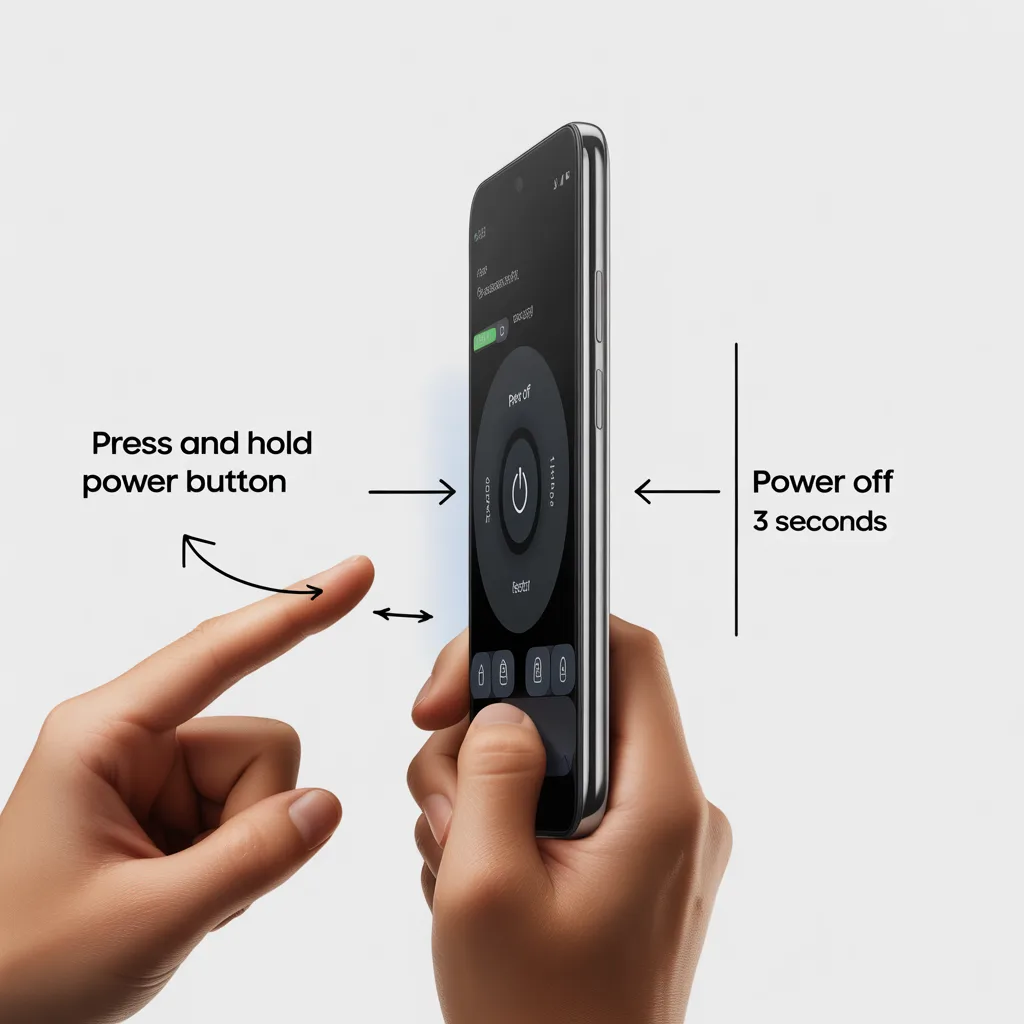
Switching off a Samsung phone might seem like a straightforward task, but with the evolution of technology and varying models, users often encounter challenges. Whether you’re navigating the latest Samsung Galaxy model or dealing with a technical glitch, knowing the correct shutdown process is essential. This comprehensive guide provides step-by-step instructions, expert tips, and solutions to common issues, ensuring you have all the information needed to power off your Samsung device effectively.
Methods to Power Off Your Samsung Phone
Understanding the different methods to switch off your Samsung phone can enhance user experience and prevent potential issues. Here are the primary techniques:
Using the Power Button
The most traditional method involves the power button. Here’s how to do it:
- Press and hold the power button located on the side of your Samsung device.
- Wait for the power menu to appear on the screen.
- Select Power off from the options.
- Confirm your selection to turn off the phone.
Navigating the Quick Settings Menu
Some Samsung models allow shutdown through the Quick Settings menu:
- Swipe down from the top of the screen to access the Quick Settings menu.
- Look for the power icon and tap on it.
- Select Power off and confirm.
Employing Voice Commands
If your Samsung device supports voice commands, you can power it off using a voice assistant:
- Activate your voice assistant by saying, “Hey Bixby” or “Ok Google.”
- Use the command “Turn off my phone.”
- Follow any additional prompts to confirm the action.
Troubleshooting: What to Do When Your Samsung Won’t Turn Off
Technical issues can sometimes prevent your Samsung phone from turning off using standard methods. Here’s how to troubleshoot:
Force Restarting Your Device
If your phone is unresponsive, a forced restart might be necessary:
- Press and hold the power button and volume down button simultaneously.
- Hold them for approximately 10 seconds until the device restarts.
Accessing Safe Mode and Recovery Mode
For persistent issues, consider Safe Mode or Recovery Mode:
- Safe Mode: Helps diagnose problematic apps. Press and hold the power button, then tap and hold Power off until Safe Mode appears.
- Recovery Mode: For more severe issues. Power off the device, then press and hold the power button and volume up button until the Samsung logo appears.
Additional Tips for Optimal Phone Performance
Ensuring your Samsung phone operates smoothly involves more than just turning it off correctly. Consider these tips:
Keeping Your Software Updated
Regular system updates can improve functionality and security:
- Navigate to Settings > Software update.
- Select Download and install to check for updates.
Monitoring Battery Health
To maintain battery longevity, monitor its health regularly:
- Go to Settings > Battery and device care > Battery.
- Review battery usage and consider battery optimization options.
Common Challenges and Solutions
While turning off a Samsung phone is typically straightforward, users may face several challenges:
- Frozen Screen: Resolve by performing a force restart.
- Non-Responsive Power Button: Use the Quick Settings menu or voice commands as alternatives.
- Software Glitches: Reboot in Safe Mode to troubleshoot.
Future Trends and Predictions
As technology progresses, expect innovations in phone shutdown processes:
- Increased Voice Command Integration: Enhanced capabilities for hands-free operation.
- Advanced UI Changes: Streamlined interfaces for easier access to power options.
- Smart Assistant Evolution: More intuitive interactions for device management.
Actionable Takeaways and Implementation Steps
- Familiarize yourself with all shutdown methods for emergency situations.
- Regularly update your software to minimize technical issues.
- Utilize voice commands for convenience, especially when the screen is unresponsive.
- Maintain battery health through optimization and regular monitoring.
Frequently Asked Questions
- How do I turn off my Samsung phone without the power button?
Use the Quick Settings menu or voice commands to power off the device. - Why won’t my Samsung phone turn off?
Possible reasons include software glitches, a non-responsive screen, or a defective power button. Try a forced restart or Safe Mode. - How do I restart a Samsung phone if it’s unresponsive?
Perform a forced restart by holding the power button and volume down button simultaneously for 10 seconds. - Can I power off my Samsung phone using voice commands?
Yes, if your device supports a voice assistant, you can use commands like “Turn off my phone.” - What should I do if my Samsung phone won’t turn off after an update?
Try a forced restart or check if a subsequent update resolves the issue. If persistent, contact Samsung support. - How can I turn off my Samsung phone with a broken screen?
Utilize voice commands or connect the device to a PC with Samsung software to initiate a shutdown. - Is there a way to switch off my Samsung phone remotely?
Using Samsung’s Find My Mobile service, you can remotely manage your device, including powering it off.
Switching off your Samsung phone efficiently ensures better device performance and longevity. By following the guidelines and troubleshooting tips provided, you can handle any shutdown scenario with confidence.